How to Fix IPTV Buffering
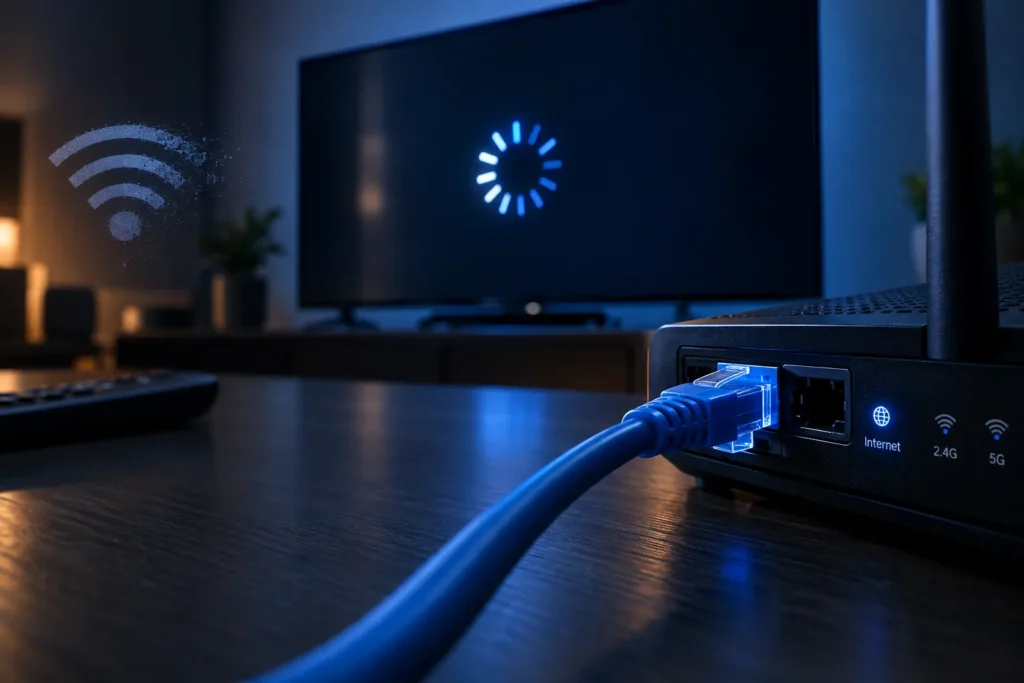
Buffering is the single most common complaint about any streaming service, and the single most misdiagnosed. People upgrade their internet plan, see no improvement, and conclude the service is bad.
In our experience the overwhelming majority of cases come down to the last few metres — the Wi-Fi hop between the router and the television. Work through this list in order; it is roughly sorted by how often each thing turns out to be the culprit.
1. Plug the TV in with an ethernet cable
If you do only one thing, do this. A wired connection eliminates every Wi-Fi variable at once, and it fixes more buffering reports than everything else on this page combined.
A long flat ethernet cable costs very little and can be run under a rug or along a baseboard. If the TV genuinely cannot be reached, a pair of powerline adapters is the next best option.
2. Check what band you are on
Most routers broadcast both 2.4 GHz and 5 GHz. The 2.4 GHz band travels further but is slower and heavily congested — it shares space with microwaves, baby monitors, Bluetooth and every neighbour’s router.
If your TV is within reasonable range, put it on the 5 GHz network. In a downtown condo tower this alone can transform playback, because 2.4 GHz there is often unusable at peak times.
3. Restart the router — properly
Unplug it at the wall, wait a full 30 seconds, plug it back in. The wait matters; it clears the memory rather than just cycling power. Routers left running for months accumulate problems that a reboot genuinely fixes.
4. Clear the app’s cache
Player apps build up cached data that eventually causes stutter, particularly on Firesticks, which have limited storage and memory.
On a Firestick: Settings → Applications → Manage Installed Applications → your player → Clear Cache. Do not choose Clear Data, which erases your login.
5. Ask whether the device is simply too old
This is the uncomfortable one. A first-generation Firestick or a Smart TV from 2016 has very little processing headroom. It may play HD acceptably and fall apart on a 4K stream, and no amount of network tuning will change that.
If everything else in the house streams perfectly and one old device does not, the device is the problem. A current-generation stick costs less than a month of cable.
6. Look at what else is on the network
A game console downloading a 90 GB update, a cloud backup, or three other people streaming will saturate a connection. If buffering happens at predictable times — early evening, or when a particular person is home — this is usually why.
7. Try a different channel and a different time
This distinguishes a local problem from a source problem. If every channel stutters, it is your setup. If one specific channel misbehaves while everything else is flawless, that particular source is having a bad day — tell your provider, because that is genuinely something they can act on.
8. Lower the quality deliberately
Not every stream needs to be 4K. On a 43-inch screen at normal viewing distance, most people cannot reliably distinguish 1080p from 4K anyway. If your connection is marginal, choosing the FHD feed gives you a stable picture instead of a beautiful one that stalls every ninety seconds.
How much speed you actually need
- SD — around 5 Mbps
- HD — around 10 Mbps
- 4K — 25 Mbps or more
Note how low these are. If you are paying for 500 Mbps and still buffering, more speed is not the answer — stability is. Live television needs packets arriving continuously and in order, so a connection that briefly drops hurts far more than one that is merely slow.
Still stuck?
Email support@proiptv.ca and include the channel, roughly what time it happened, whether the TV is on Wi-Fi or ethernet, and what else was streaming at the time. That is usually enough for us to identify the cause on the first reply rather than the fourth.