IPTV on Firestick in Canada (2026): Which Fire TV Stick Works and How to Set It Up
The Firestick is the most popular way to watch IPTV in Canada, and for good reason: it is inexpensive, it plugs into any TV with an HDMI port, and it runs the best player apps. But in 2026 there is a catch most buyers do not know about. Some brand-new Fire TV Sticks run a different operating system that cannot install the apps most IPTV setups rely on. This guide explains which Firestick to buy, how to check the one you already own, how to set it up, and how to keep it running smoothly.
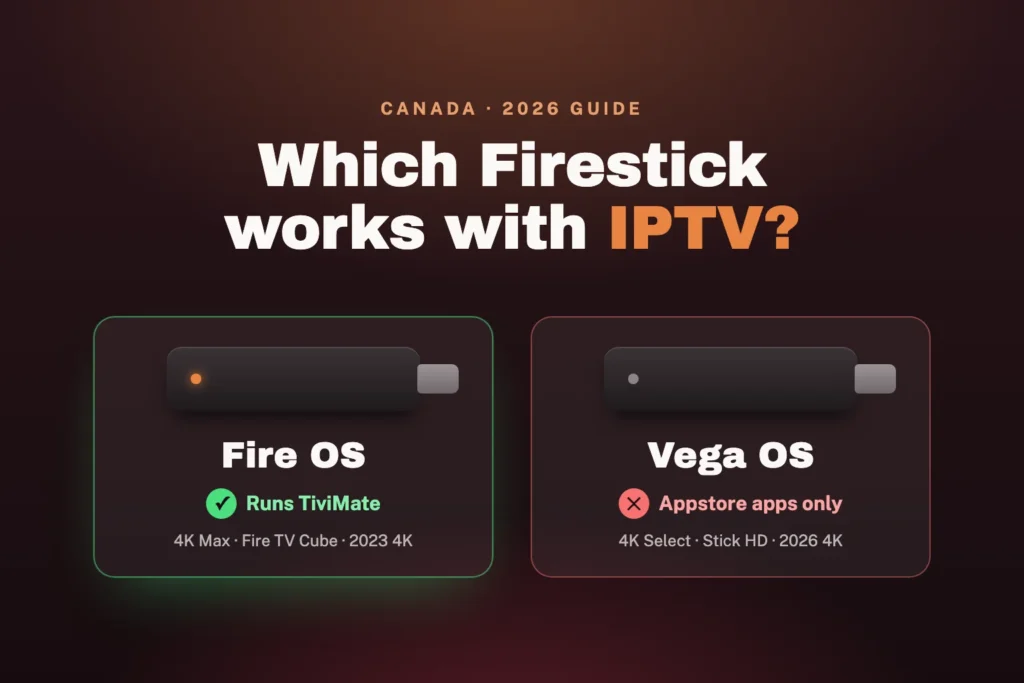
The short answer: IPTV works best on a Firestick that runs Fire OS, such as the Fire TV Stick 4K Max or the Fire TV Cube. Newer models that run Vega OS — including the Fire TV Stick 4K launched in Canada on September 30, 2026 — cannot install TiviMate or any app from outside the Amazon Appstore. Check Settings → My Fire TV → About before you set anything up.
Does every Firestick work with IPTV?
Not any more. For years every Fire TV device ran Fire OS, a version of Android, which meant you could install almost any Android player app. In late 2025 Amazon started moving its sticks to Vega OS, a new system that is not based on Android. Vega OS devices only run apps from the Amazon Appstore, and Amazon has said all future Fire TV Sticks will use it.
Here is where each current model stands:
| Model | Operating system | Works with TiviMate? |
|---|---|---|
| Fire TV Stick 4K Max | Fire OS | Yes — our top pick |
| Fire TV Cube | Fire OS | Yes |
| Fire TV Stick 4K (2023 model) | Fire OS | Yes |
| Older Fire TV Stick and Fire TV Stick Lite | Fire OS | Yes, but slower and HD only |
| Fire TV Stick 4K Select (2025) | Vega OS | No |
| Fire TV Stick HD (2026) | Vega OS | No |
| Fire TV Stick 4K (2026 model) | Vega OS | No |
Notice that the 2023 and 2026 models share the same name, “Fire TV Stick 4K”. The new one launched in Canada on September 30, 2026 with an introductory price of $39.99, which makes it very tempting — but it is the Vega OS version. If you are buying for IPTV, read the product listing carefully, or choose the 4K Max.
How do you check which Firestick you have?
It takes ten seconds, and it is worth doing before you follow any setup guide:
- From the home screen, open Settings (the gear icon).
- Choose My Fire TV, then About.
- Look at the Software Version line. If it shows Fire OS 7 or Fire OS 8, you are set. If it mentions Vega OS, or shows no Fire OS number at all, your stick is a Vega OS model.
Another quick clue: if you cannot find Developer Options anywhere in the settings, even after following the steps further down, you are almost certainly on Vega OS.
Which Firestick should you buy for IPTV in Canada?
If you are buying a stick specifically to watch IPTV, these are our recommendations:
- Fire TV Stick 4K Max — the best choice for most homes. It runs Fire OS, has more storage and a faster processor than the other Fire OS sticks, and supports Wi-Fi 6E. Live channels switch quickly and the TV guide scrolls smoothly.
- Fire TV Cube — the best for a main living-room TV. It costs more, but it is noticeably faster than a stick and has a built-in Ethernet port for a rock-solid wired connection.
- Avoid the Vega OS models for IPTV. The Fire TV Stick 4K Select, Fire TV Stick HD and the 2026 Fire TV Stick 4K are fine for Netflix and Prime Video, but they will not run TiviMate.
Amazon says older models will stay on sale “while supplies last”, so Fire OS sticks will become harder to find over time. If you already own one that works, there is no reason to replace it. And if you would rather not depend on Amazon at all, an Android TV or Google TV box runs TiviMate straight from the Google Play Store. Our guide to IPTV boxes in Canada compares the options.
How do you set up IPTV on a Firestick?
On a Fire OS stick, setup takes about ten minutes the first time. There are four stages:
- Get your login details. Start a free trial or choose a plan, and tell us you are using a Firestick. We email your details together with the download address for the player.
- Install Downloader from the Amazon Appstore. It is a free, widely used app that installs other apps from a web address.
- Allow Downloader to install apps. Go to Settings → My Fire TV → Developer Options → Install Unknown Apps and switch Downloader on. If Developer Options is hidden, open About and press select on your device name seven times.
- Install TiviMate and sign in. Type the download address we sent into Downloader, install the player, then choose Add playlist → Xtream codes and enter your server address, username and password.
Our Firestick installation guide walks through every screen of these steps. And if you would rather not do it yourself, say so when you contact us: our team will install and activate everything at no charge.
What if your Firestick runs Vega OS?
You are not completely stuck, but your choices are narrower:
- Look for a player in the Amazon Appstore. Search for “IPTV” and choose a player that supports Xtream codes or M3U links. A small number are available for Vega OS; TiviMate is not, and the selection changes from month to month. Message us with your model before you pay for any app, and we will tell you what currently works.
- Return it if you just bought it. If the stick is new and still within the retailer’s return window, exchanging it for a 4K Max is the simplest fix.
- Use another screen. A Smart TV app, an Android TV box, a phone or a computer all work with the same subscription.
Be wary of any website or video that claims to “unlock” sideloading on Vega OS. There is no such method, and anything promising one is more likely to be after your login details.
The best Firestick settings for smooth IPTV
A Firestick is a small computer squeezed behind your TV, and a few simple habits make a big difference to how well it streams:
- Use a wired connection if you can. An Ethernet adapter made for Fire TV costs little and removes the most common cause of buffering. The Fire TV Cube has a port built in.
- Get the stick out from behind the TV. The TV itself blocks Wi-Fi. A short HDMI extender cable moves the stick a few centimetres away and often improves the signal noticeably.
- Power it from the wall. On older models, use the power adapter that came in the box rather than a USB port on the TV. Many TV ports do not supply enough power, which causes random restarts and slowdowns.
- Keep storage free. Uninstall apps you never use, delete the installer file in Downloader once TiviMate is installed, and clear the app cache occasionally in Settings → Applications → Manage Installed Applications.
- Restart it once a week. Settings → My Fire TV → Restart. A Firestick rarely switches off completely on its own, and a fresh start clears memory.
- Check your speed at the TV. Around 10 Mbps is enough for Full HD, and 25 Mbps for 4K. Our guide to internet speed for IPTV shows how to test properly.
Common Firestick IPTV problems and how to fix them
Downloader does not appear under “Install Unknown Apps”
A recent Fire TV update briefly caused this list to show up empty on some sticks. Amazon has since released a fix that installs automatically. Restart the stick, check for updates in Settings → My Fire TV → About, then try again. If Developer Options is missing completely, see the Vega OS section above.
Typing the details with the remote takes forever
Install Amazon’s free Fire TV app on your phone. It works as a remote with a full keyboard, so you can type the server address, username and password in seconds — and with fewer mistakes.
“Invalid login” or no channels load
Check every character. Usernames and passwords are case-sensitive, and the server address must include everything we sent, including http:// and any port number after a colon. If it still fails, make sure your trial has not ended.
The stick is slow, or the app closes by itself
This is almost always low storage or low memory. Free up space, restart the stick, and close other apps before watching. Very old Fire TV Sticks can struggle with large channel lists; a 4K Max is a big upgrade.
Channels buffer or freeze
Nine times out of ten this is the Wi-Fi between the router and the TV, not the service. Try an Ethernet adapter or an HDMI extender first, then work through our guide to fixing IPTV buffering.
Frequently asked questions
Do I need to “jailbreak” my Firestick?
No. “Jailbreaking” is a misleading name for switching on Install Unknown Apps, a standard setting on every Fire OS stick. It does not modify the device, and you can switch it off again at any time. Just make sure you only install apps you trust.
Will the new 2026 Fire TV Stick 4K work with IPTV?
Not with TiviMate. It runs Vega OS, which only allows apps from the Amazon Appstore. If you want TiviMate on a Firestick, choose the Fire TV Stick 4K Max or the Fire TV Cube.
Can I use the same subscription on my Firestick and my phone?
Yes. You can install the app on as many devices as you like. Every plan includes one simultaneous connection, so one screen can be playing at a time.
Does IPTV look as good on a Firestick as on a Smart TV?
Usually better. A Fire TV Stick 4K Max is faster than the built-in apps on most TVs, and TiviMate has one of the best TV guides of any player.
What if I get stuck?
Message us on WhatsApp or email support@proiptv.ca with your Firestick model and what you see on screen. A real person will help, and we can set everything up for you at no charge.
The short version
Check that your Firestick runs Fire OS, install Downloader, allow it to install apps, then install TiviMate and enter your login details. If you are buying a new stick, choose the Fire TV Stick 4K Max and skip the Vega OS models, including the new 2026 Fire TV Stick 4K.
The easiest way to test your setup is the 24-hour free trial — no credit card, full service. Compare terms on the pricing page, or read how to get IPTV if you are just getting started.