How to Install IPTV: Setup Guide for Every Device
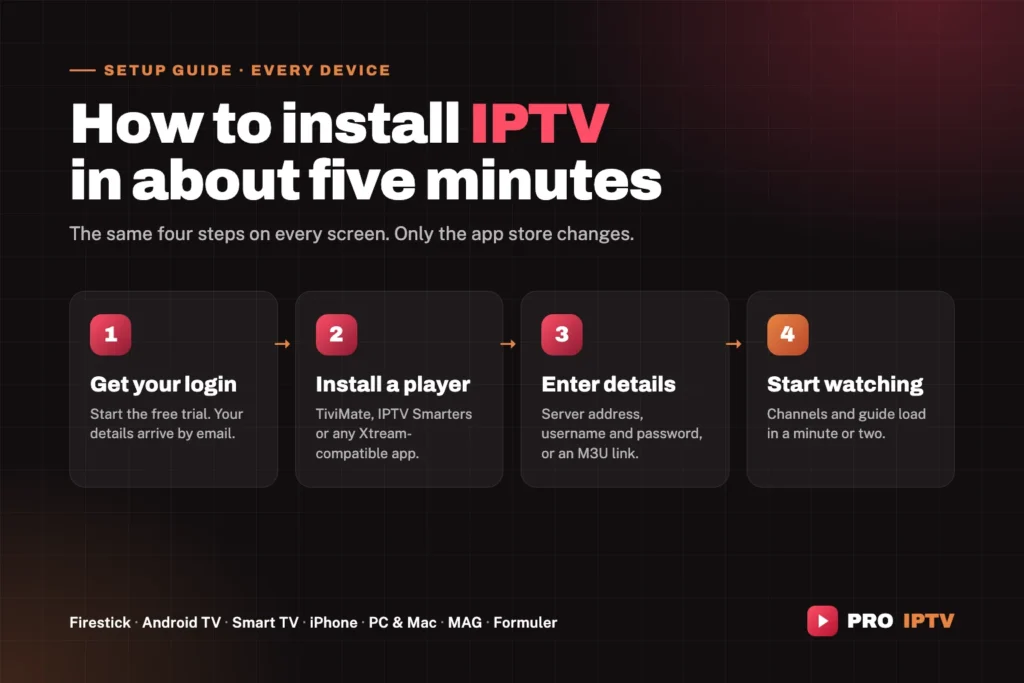
This guide shows you how to install IPTV on every device we support, step by step. Setup takes about five minutes on most screens, and the process is the same everywhere: get your login details, install a player app, type the details in, and start watching. Pick your device below and follow the steps.
Rather not do it yourself? Tell us your device when you contact us and our team will install and activate everything for you, at no charge.
Choose your device
- Amazon Firestick and Fire TV
- Android TV, Google TV and Android boxes
- Samsung and LG Smart TVs
- iPhone and iPad
- Android phones and tablets
- Windows PC and Mac
- MAG boxes
- Formuler boxes
Before you start
A subscription is not an app. It is a set of login details that you type into a player app of your choice. Once you start your free trial or buy a plan, we email you your details in the format your device needs:
| Format | What you receive | Used by |
|---|---|---|
| Xtream codes | A server address, a username and a password | TiviMate, IPTV Smarters and most modern players |
| M3U link | One web address containing your channel list | Almost any player, including VLC |
| Portal (MAC) | A portal address; we register your device’s MAC address | MAG and Formuler boxes |
Three things make setup smoother on every device:
- Type the details exactly. Usernames and passwords are case-sensitive, and the server address must include everything we send, including
http://and any port number after a colon. - Use a wired connection if you can. An Ethernet cable to the TV prevents most buffering. See how much internet speed IPTV needs.
- Only install apps from official sources. Use your device’s app store, or the download address we give you. Never install a player from a random website or video description.
How to install IPTV on a Firestick or Fire TV
The Firestick is the most popular way to watch IPTV in Canada. The recommended player, TiviMate, is not in the Amazon Appstore, so it is installed with Downloader — a free, widely used app that is in the Appstore. This takes about ten minutes the first time.
Part 1: Install Downloader
- From the Fire TV home screen, open Find (the magnifying glass) and choose Search.
- Type Downloader and select the orange Downloader app.
- Select Download or Get and wait for it to install. Do not open it yet.
Part 2: Allow Downloader to install apps
- Go to Settings → My Fire TV.
- If you do not see Developer Options, open About, highlight your device name (for example “Fire TV Stick 4K”) and press the select button seven times. A message confirms you are now a developer. Press Back.
- Open Developer Options → Install Unknown Apps and switch Downloader to On.
Part 3: Install TiviMate and log in
- Open Downloader and allow it access to files when asked.
- In the address box, type the download address we send you with your login details, then press Go.
- When the download finishes, select Install, then Open.
- In TiviMate, choose Add playlist → Xtream codes.
- Enter the server address, username and password from your email, then select Next.
- Keep live TV and video on demand selected, then select Done. Channels and the TV guide load within a minute or two.
Tip: once TiviMate is installed you can delete the downloaded installer file inside Downloader to free up storage. Some TiviMate features need TiviMate Premium, which is sold by the app’s developer, not by us.
How to install IPTV on Android TV, Google TV and Android boxes
Android-based TVs and boxes — including many Sony, TCL and Hisense models, Chromecast with Google TV and Nvidia Shield — have the easiest setup, because TiviMate is in the Google Play Store.
- Open the Google Play Store on your TV or box.
- Search for TiviMate and install it.
- Open TiviMate and choose Add playlist → Xtream codes.
- Enter the server address, username and password from your email, then select Next.
- Select Done and wait a minute for the channels and guide to load.
How to install IPTV on a Samsung or LG Smart TV
Samsung and LG TVs do not run Android apps, so TiviMate is not available on them. You have two good options.
Option 1: A player from the TV’s own app store
- Open Apps on a Samsung TV, or the LG Content Store on an LG TV.
- Search for IPTV and install a player that supports Xtream codes or M3U links.
- Open it and enter your login details. Some Smart TV players are activated using the TV’s MAC address instead — the app shows you the address, and you send it to us.
Many Smart TV players charge a small fee of their own after a trial period. That fee goes to the app developer, not to us. If you are unsure which player to pick for your model, message us first and we will recommend one.
Option 2: Plug in a streaming stick
For the smoothest experience, especially on an older or slower TV, plug a Firestick or Android TV box into a spare HDMI port and follow that device’s guide above. It is often faster and more reliable than the TV’s own apps.
How to install IPTV on iPhone and iPad
- Open the App Store and search for an IPTV player that supports Xtream codes, such as IPTV Smarters.
- Install and open it, then choose the option to log in with Xtream codes.
- Enter any name for the playlist, then your username, password and server address.
- Tap Add user or Log in, and wait for the channels to load.
App names in the App Store change from time to time. If you cannot find the one you want, message us and we will point you to a current option. The same app usually works on Apple TV too.
How to install IPTV on Android phones and tablets
- Open the Google Play Store and install an IPTV player that supports Xtream codes.
- Open it and choose to log in with Xtream codes.
- Enter your server address, username and password, and wait for the channels to load.
Remember that every plan includes one simultaneous connection. If the TV is already playing, your phone will not start a second stream until the first one stops.
How to install IPTV on a Windows PC or Mac
The quickest way to test on a computer is VLC, a free and trusted media player. It plays your channels from an M3U link, though it does not show a full TV guide.
- Download VLC from its official website, videolan.org, and install it.
- Open VLC and choose Media → Open Network Stream on Windows, or File → Open Network on Mac.
- Paste the M3U link from your email and press Play (or Open).
- Open the playlist view to browse and switch channels.
For a full TV-guide experience on a computer, ask us for a recommended desktop player that supports Xtream codes.
How to install IPTV on a MAG box
MAG boxes do not use a username and password. Instead, we link your subscription to the box’s MAC address.
- Find your box’s MAC address. It is printed on a sticker underneath the box, and it starts with 00:1A:79.
- Send us the MAC address. We activate it and reply with your portal address.
- On the box, go to Settings → System settings → Servers → Portals.
- Enter any name in Portal 1 name, and the portal address we sent you in Portal 1 URL.
- Save, go back and restart the box. It loads the portal and your channels automatically.
How to install IPTV on a Formuler box
- Open the MyTVOnline app that comes with your Formuler box. The box’s MAC address is shown on its first screen.
- Send us the MAC address. We activate it and reply with your portal address.
- In MyTVOnline, choose to add a portal, enter any nickname and the portal address we sent, then connect.
- Wait for the channels and guide to load.
What if it does not work?
Most setup problems come down to a few causes, and all of them are quick to fix:
- “Invalid login” or no channels load. Check every character of the server address, username and password — a missing
http://, a missing port number or a single wrong capital letter is the usual culprit. Also check that your trial has not ended. - The guide is empty. The TV guide can take a few minutes to fill the first time. Leave the app open, or refresh the guide from its settings.
- Channels buffer or freeze. This is almost always the connection to the TV, not the login. Try an Ethernet cable, or see our guide to fixing IPTV buffering.
- A second screen will not play. Each plan includes one simultaneous connection. Stop the stream on the other device first.
Still stuck? Message us with your device, the app you are using and what you see on screen. A real person will help you, and we can set it up for you remotely where possible.
Frequently asked questions
How long does it take to install IPTV?
About five minutes on most devices, and around ten on a Firestick the first time, because Downloader needs to be set up once.
Which IPTV player app should I use?
TiviMate on Firestick and Android TV, and an Xtream-compatible player such as IPTV Smarters on iPhone, iPad and Android phones. Our service works with any Xtream-compatible player, so you are free to use the one you prefer.
Do I have to pay for the player app?
Many players are free to install, and some offer optional premium features sold by their own developers. Our subscription covers the channels and content; any app upgrade is separate and optional.
Can I install IPTV on more than one device?
Yes. Install the app on as many devices as you like. Every plan includes one simultaneous connection, meaning one screen can be playing at any given moment.
Is it safe to enable “Install unknown apps” on a Firestick?
It is safe as long as you only install apps you trust. The setting simply lets Downloader install the player file. Only use the download address we send you, and never install apps from random links.
Ready to start?
Start your 24-hour free trial — no credit card needed — and your login details arrive by email. Compare plans on the pricing page, or read how to get IPTV if you are new to it.